
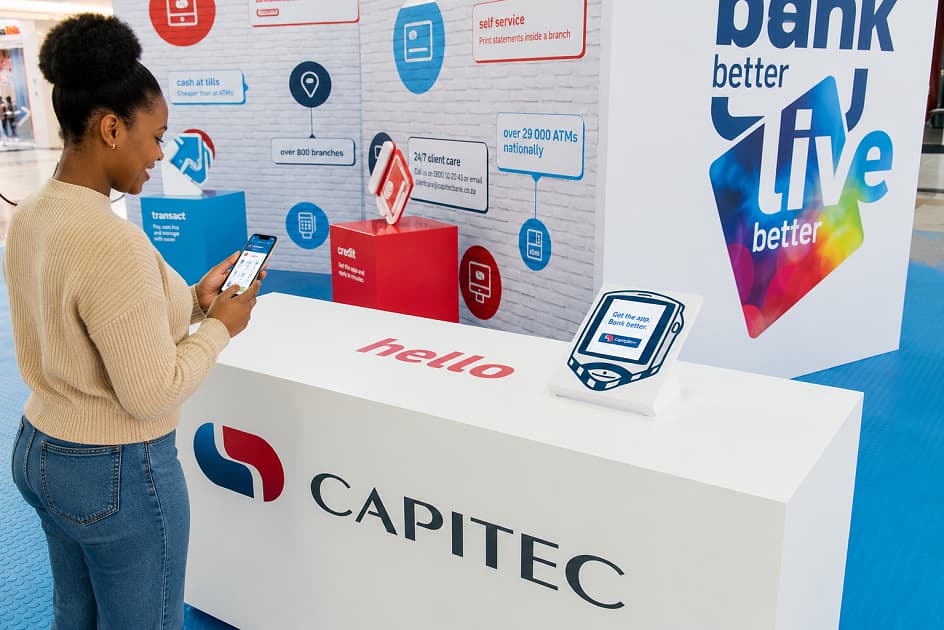
Many customers can activate Capitec Bank App remotely without visiting a branch. You’ll need a supported smartphone, your South African ID number, a registered cellphone number, and internet access. The activation process includes identity verification and creating a secure Remote PIN. Once activated, the app can be used for payments, transfers, card management, savings, and account monitoring. If activation fails, several troubleshooting steps can often resolve the issue before branch assistance becomes necessary.
Capitec Bank App has become the primary way many South Africans manage their everyday banking. From checking balances and making payments to buying airtime and downloading bank statements, the app provides access to most banking services without the need to visit a branch.
One of the questions many customers ask is whether it’s possible to activate the app remotely. The answer is yes, for many customers, Capitec’s remote onboarding process allows activation without going to a branch, provided you meet the eligibility requirements and complete the identity verification process. Existing customers can also activate the app on a new smartphone or reset a forgotten Remote PIN in many cases without visiting a branch.
This guide explains everything you need to know, from the preparation stage through activation, registration, first login, common problems, and security best practices.
Why Activate the Capitec Bank App?
Digital banking offers far more than simply viewing your account balance.
Once the app is activated, you can:
- View account balances in real time
- Transfer money between accounts
- Make EFT payments
- Send cash
- Buy airtime, electricity and data
- Manage beneficiaries
- Receive transaction notifications
- Download official bank statements
- Update selected account settings
- Approve Internet Banking transactions securely
For customers who prefer self-service banking, activating the app reduces the need for routine branch visits.
What You’ll Need Before You Begin
Preparing beforehand helps ensure the activation process goes smoothly.
Essential Requirements
Before opening the app, make sure you have:
- A compatible Android, iPhone or supported Huawei smartphone
- The latest Capitec Bank App installed
- Your South African ID number
- Your registered South African cellphone number
- A valid email address (recommended)
- A stable internet or Wi-Fi connection
- Camera access enabled for identity verification
Capitec uses facial verification during remote onboarding to confirm your identity against official records, which helps reduce fraud and allows many customers to complete activation remotely.
Is Everyone Eligible for Remote Activation?
Although remote activation is available to many customers, eligibility depends on factors such as your account status, identity verification, and the information Capitec has on record.
In some situations, additional verification may still require a branch visit for security reasons.
Examples include:
- Identity verification cannot be completed.
- Your registered cellphone number cannot be confirmed.
- Your Remote Banking profile has been suspended.
- Additional fraud prevention checks are required.
Step-by-Step: Activate Capitec Bank App Without Visiting a Branch
Rather than thinking of activation as a single action, it helps to view it as a sequence of stages.
Stage 1: Download the Official App
Install the official Capitec Bank App from your device’s app store.
Avoid downloading applications from unofficial websites or third-party sources.
Stage 2: Open the Application
Launch the app and choose the option that matches your situation.
For example:
- Existing Capitec customer
- Opening a new account
- Forgot Remote PIN
Selecting the correct option reduces unnecessary steps later in the process.
Stage 3: Verify Your Identity
Depending on your circumstances, you’ll be asked to provide information such as:
- South African ID number
- Account number
- Registered cellphone number
You may also be prompted to complete facial verification by taking a series of selfies following the on-screen instructions.
Stage 4: Create Your Remote PIN
After successful verification, create a Remote PIN.
Choose one that:
- Is unique
- Is difficult to guess
- Differs from your phone unlock code
- Is not based on birthdays or simple number sequences
This PIN will be used whenever you log into the app or authorise certain transactions.
Stage 5: Complete Device Verification
For security purposes, the app links your banking profile to your smartphone.
In some cases, you may be asked to confirm your cellphone number through an SMS-based verification step. iPhone users may need to send a verification SMS manually during activation.
Stage 6: Start Banking
Once activation is complete, a confirmation message appears.
You can immediately begin using the app for day-to-day banking.
Logging In for the First Time
Your first login is usually straightforward.
Open the app.
Enter your Remote PIN.
If supported by your device, you can then enable:
- Fingerprint login
- Face recognition
Biometric authentication offers convenience while maintaining account security.
Features Available Immediately After Activation
Once logged in, you’ll typically have access to:
Account Management
Monitor balances and recent transactions without waiting for monthly statements.
Payments
Pay beneficiaries and make electronic transfers.
Card Controls
Manage selected card settings and security features.
Statements
Download official PDF bank statements.
For detailed guidance, read our How to Get a Bank Statement from the Capitec Bank App: View, Download, Email, and Print Your Statement.
Digital Purchases
Buy:
- Airtime
- Data
- Electricity
- Digital vouchers
Switching to a New Phone
Changing smartphones no longer necessarily means visiting a branch.
If you’ve previously verified your email address, Capitec allows many customers to activate the app on a new supported device by following the in-app verification process.
Before replacing your old phone:
- Ensure your email address is verified.
- Install the latest version of the app on the new device.
- Follow the activation instructions displayed.
Forgot Your Remote PIN?
For many customers, a forgotten Remote PIN can now be reset directly in the app.
Generally, the process involves:
- Opening the app.
- Selecting Forgot PIN.
- Completing identity verification.
- Creating a new Remote PIN.
If your access has been suspended after multiple incorrect PIN attempts, you may need additional assistance for security reasons.
Troubleshooting Common Activation Problems
Even when all requirements are met, activation may not always work on the first attempt.
Problem: Identity Verification Fails
Possible reasons include:
- Poor lighting
- Camera obstruction
- Blurry images
- Facial features not clearly visible
Move to a well-lit area and clean your camera lens before trying again.
Problem: SMS Verification Doesn’t Complete
Check that:
- Your registered cellphone number is correct.
- You have a mobile signal.
- Your phone can send SMS messages if required.
- On dual-SIM devices, the correct SIM is being used for authentication.
Problem: The App Won’t Install
Confirm that:
- Your operating system is supported.
- Sufficient storage space is available.
- You’re downloading the official Capitec Bank App.
Problem: Login Isn’t Working
Try:
- Confirming your Remote PIN.
- Restarting your phone.
- Updating the application.
- Using the “Forgot PIN” option if necessary.
Problem: Activation Stops Unexpectedly
Temporary interruptions can result from:
- Weak internet connectivity
- Network interruptions
- Server maintenance
Waiting a few minutes before trying again often resolves temporary issues.
Security Tips for Everyday Banking
Activating the app is only the beginning. Keeping it secure is equally important.
Follow these recommendations:
- Never share your Remote PIN.
- Keep your phone’s operating system updated.
- Download updates only through official app stores.
- Enable biometric login where available.
- Avoid public Wi-Fi when completing sensitive banking tasks.
- Sign out after using the app on shared devices.
Capitec also recommends keeping your verified email address up to date because it can simplify future device activation and account recovery.
Making the Most of the App
After activation, it’s worth exploring features that can simplify your banking routine.
You can monitor spending habits using your transaction history and compare your banking costs with Capitec Bank Fee Breakdown: What You Really Pay (From Real Usage).
If you’re evaluating whether Capitec remains the best fit for your financial needs, our Compare Major South African Bank Fees and Compare Bank Accounts Using Real Usage Scenarios provide broader comparisons across South African banks.
To reduce everyday banking costs, you may also find value in How to Reduce Monthly Bank Fees in South Africa (Without Changing Banks) and Pay-Per-Use vs Bundled Bank Accounts in South Africa: Which One Actually Saves You More?
Frequently Asked Questions
Can I activate the Capitec Bank App without visiting a branch?
Yes. Many customers can complete activation remotely using Capitec’s identity verification process, provided they meet the eligibility requirements.
Do I need a South African cellphone number?
Yes. Your registered South African cellphone number is an important part of the verification and security process.
Is facial verification required?
For remote onboarding and certain activation scenarios, facial verification forms part of the identity confirmation process.
Can I activate the app on a new phone?
Yes. Existing customers can often activate the app on a new supported smartphone without visiting a branch, especially if their email address has already been verified.
What if I enter the wrong Remote PIN several times?
Repeated incorrect PIN attempts can result in your Remote Banking access being suspended as a security measure. Additional verification may then be required.
Conclusion
Capitec has significantly expanded its digital onboarding capabilities, making it possible for many customers to activate the banking app, verify their identity, and begin managing their accounts without visiting a branch. The process is designed to balance convenience with strong security measures, including biometric verification, device authentication, and Remote PIN protection.
By ensuring your contact details remain current, using a secure smartphone, and following the official activation steps, you can access most of Capitec’s digital banking services from virtually anywhere while reducing the need for in-person banking.
